Thanks for the pictures. This helps a lot. So it looks like you have the barrel jack version… Do you also have an appropriate charger? Your answer could potentially change my previous information. Given that your LED turns on with diode mode does give me slight pause, but it’s not definitively an issue and still probably has an internal resistor. You should be seeing a very small forward voltage with that diode test you did. If you have a bench top supply, you might try slowly, ramping up the current to see if it settles on some sort of low value when you have it maxed out at 4.2V (fully charged 18650 battery). Everything else looks good. Just make sure you are either supplying 5V to the Proffie vbus through that barrel jack or using an external li-ion charger designed specifically for single-cell 18650 batteries (in which case you’d actually wire to the battery not vbus).
I’m pretty sure I have an old 5V, 0.5A USB charging block lying around. So I will need to use the Proffie on board charging circuit correct? Also, I will have to see how I can measure the current across the blue LED, what is the max on the output?
You can charge by opening the hilt and plugging into the micro USB. It will charge at about 450mA. If you want to use that barrel jack on the board you need to have something you can plug into it. Then, depending on what that is will determine how you wire it to the Proffie. If you don’t have a safe Li-ion charging solution that mates with that barrel jack (or one that delivers 5V directly to the Proffie VBUS), you shouldn’t even connect the CH+ and CH- at all. Instead either charge the battery outside of the saber (not a bad thing anyway) or use the built in micro USB.
Hi, I would be extremely grateful if you could share your wiring diagram please. Happy to receive it by email if it’s an issue posting a diagram on this forum. Many thanks Les.
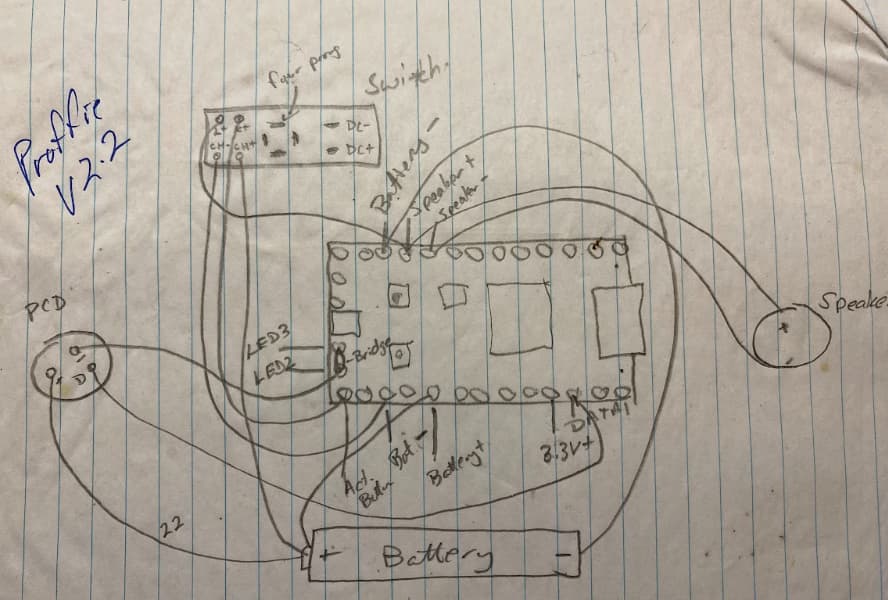
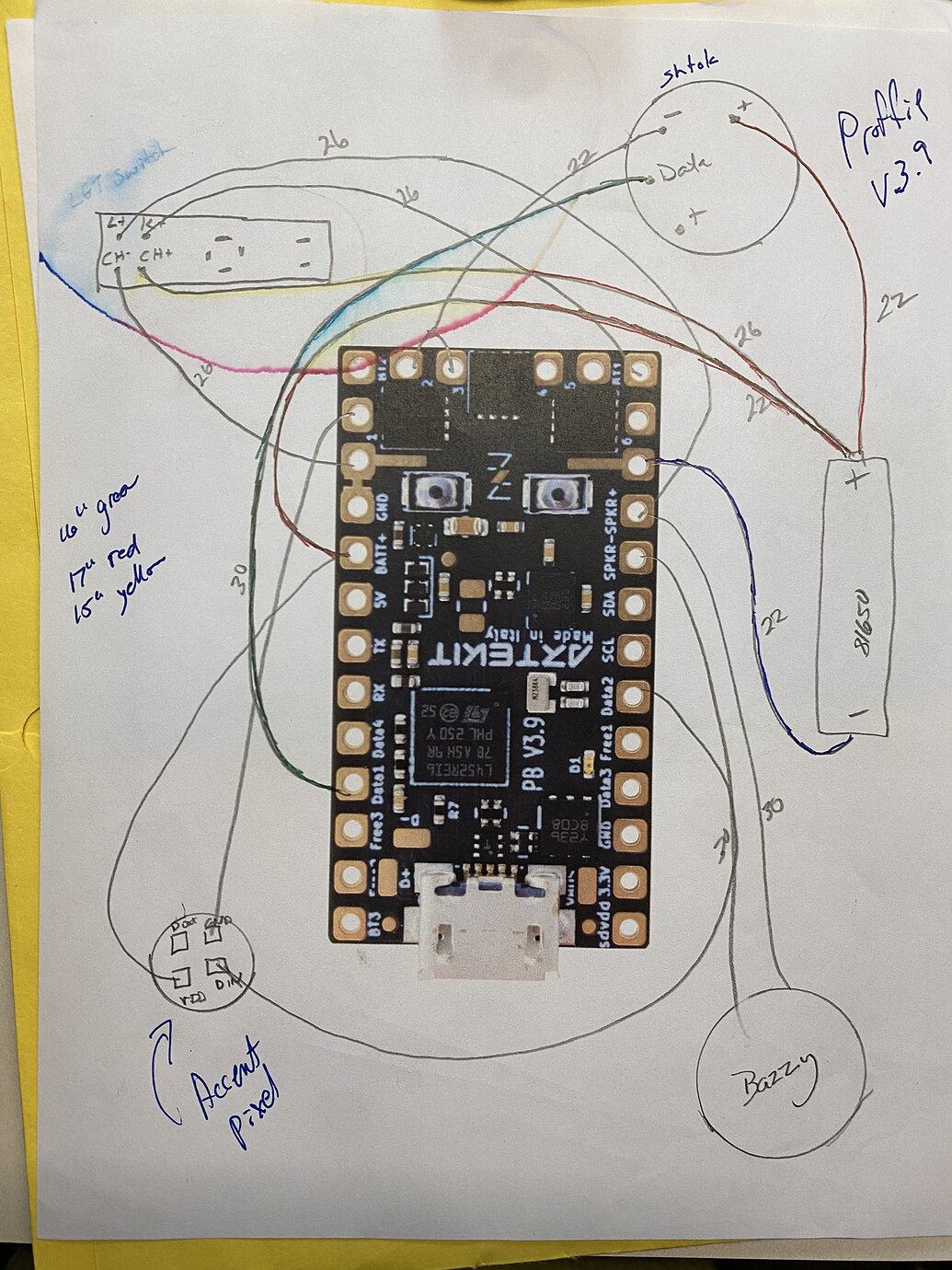
Hi there lestaylor. You can also see mine earlier in this thread if it’s helpful. It’s in the June 20th post if you expand each section.
This is a great thread thank you all for the helpful advice! I’ve been able to upgrade 3 cheap baselit sabers to nice Proffie 3.9 neopixels running ProffieOS 8.10 using this thread. Now I’ve got a curveball though. I have a slightly nicer Xeno3 baselit saber with a button/usbC PCB that has 8 wires (two sets of 4 in the same color) instead of the 4 above.
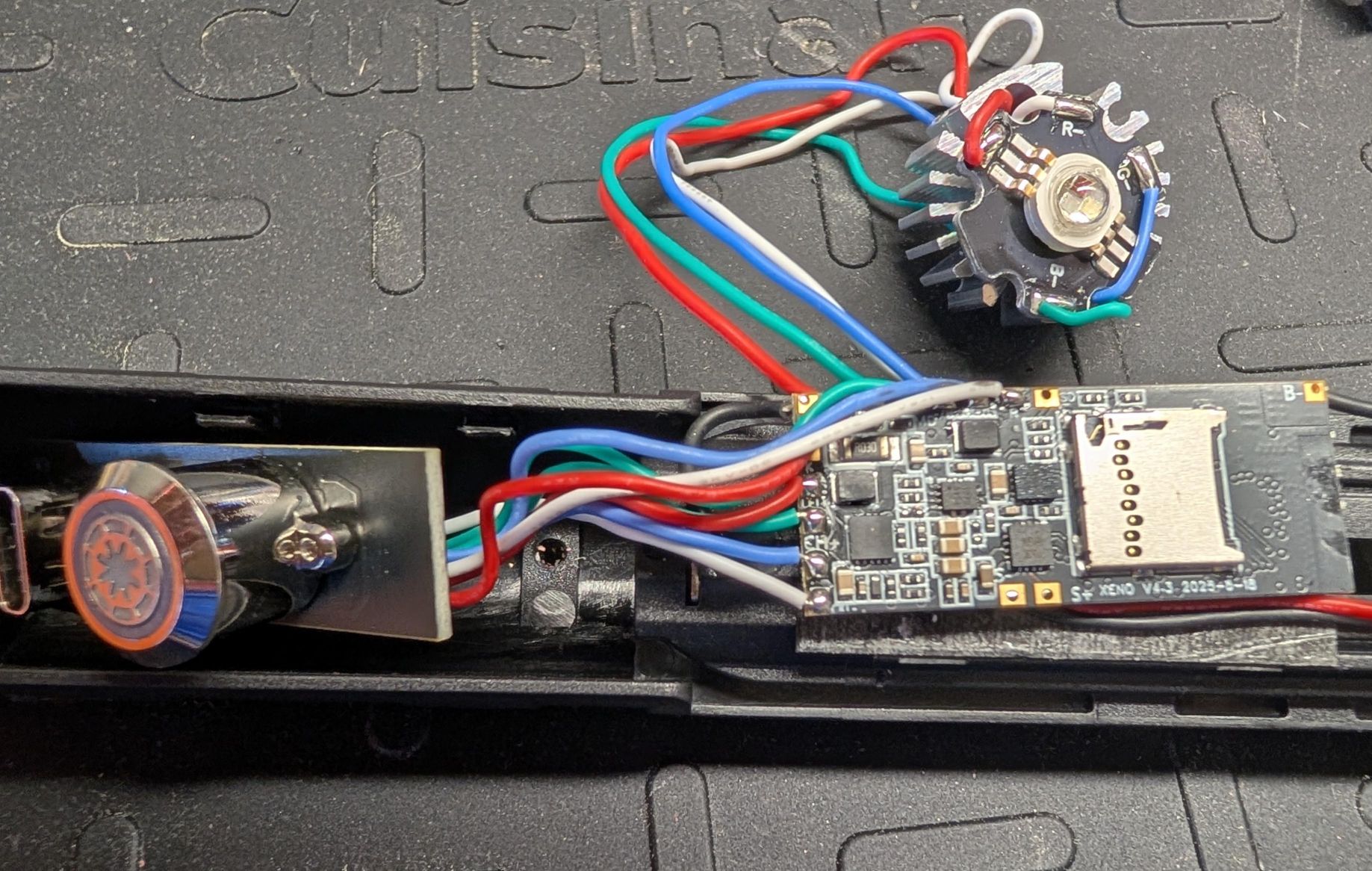
I think the first 4 wires are just like above. The second 4 wires are all connected to the same pins as the RGB baselit LED also pictured, so I thought I might wire them up like the V3 configuration generator suggests for an RGB button, and add the config to @jedimaster’s blade config above:
BladeConfig blades[] = {
 { 0, WS281XBladePtr<144, bladePin, Color8::GRB, PowerPINS<bladePowerPin2, bladePowerPin3> >(),
    SimpleBladePtr<CreeXPE2WhiteTemplate<1000>, CH1LED, CH2LED, CH3LED, 9, bladePowerPin1, bladePowerPin4, bladePowerPin5> >()   // Free3 (pin 9) white button LED
  , CONFIGARRAY(presets) },
};
Or maybe SimpleBladePtr could/should be simpler like the Proffie V3 configuration generator?
SimpleBladePtr<CH1LED, CH2LED, CH3LED, 9, bladePowerPin1, bladePowerPin4, bladePowerPin5, -1>()
Thanks again for everything you all do for makers and saber enthusiasts, and appreciate any help on this question!
Hey there Jon. I’m familiar with this exact setup. It has wires for charging, for white LEDs for when not ignited, and wires for pixels typically in parallel with the main blade to light the button the same color as the blade. I’m not home at the moment but will pull one of these out later and give you the details.
I’ve opted to ignore the white LEDs in those switches because I can achieve all I need with the pixels. But you could use them if you want to.
Ok, so there are two variations of these. They come from DamienSaber. There is a 7 wire that has two onboard pixels in parallel and 2 white LEDs in parallel. The 8 wire like you have here has 2 RGB LEDs and 2 white LEDs, both sets in parallel. 4 wires are longer than the other 4. These longer wires are what powers the RGB LEDs. All LEDs on these two boards have the correct resistors included so no external resistors needed.
Longer wires:
RED = BATT+ (for RGB LEDs)
WHITE = R
BLUE = G
GREEN = B
The shorter wires are as follows:
WHITE = GND
BLUE = 5V from USB
GREEN = LED+ (for the white LEDs)
RED = Button
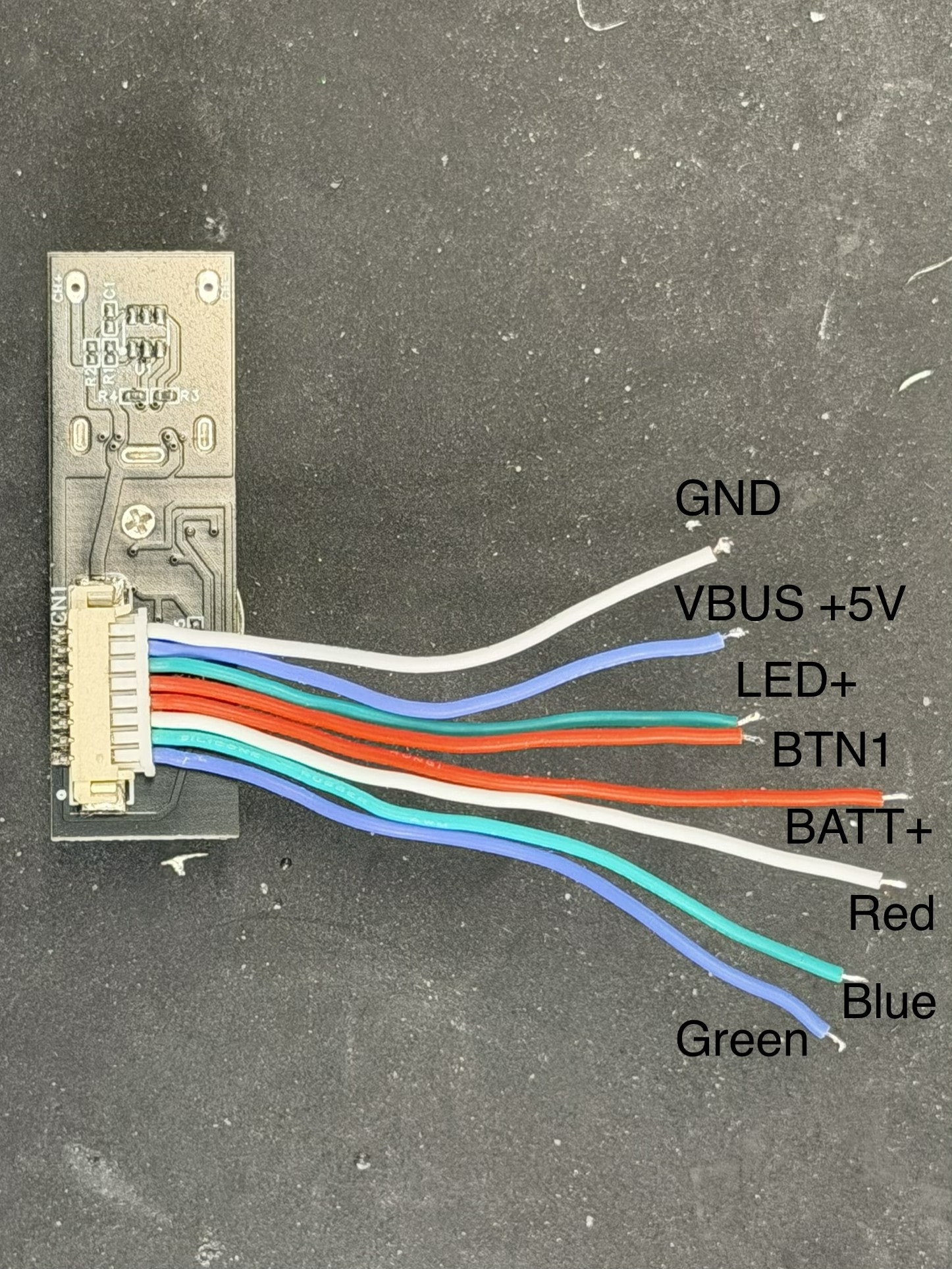
So if you want to use this button, you’ll either need to use 3 of your power pins (R, G, B) or go with just one of them or the white if you want to ignore the RGB and use my previously described method.
These buttons are pretty cool because you can open them up and see the LEDs on the PCB. I’ve even swapped out the LEDs for pixels… it was a chore and not necessarily recommending it as I’d consider that a hack…
Dude you are truly a Jedi Master. Can you help me with the blade config and wiring if I turn it all on? It could be like a poor man’s crystal chamber.  The only other connection on the LGT Nexus Proffie one button setup is the main blade so we could use all the other Proffie board connections? Teach me oh Jedi Master…
I got it working! I wired as above with the short wires, then did 3.3v for the red wire, then power pins 1 (Red),4(Green), and 5(Blue). It looks great and I have it set to mimic the main blade.
I don’t understand bladeconfigs yet so I kept @jedimaster 's and added the rgb button blade from the Proffie 3.9 configuration generator to get this monster. It does look cool but I wonder if couldn’t be more elegant with the blade configs. It also seems a little washed out like there’s too much white.
BladeConfig blades[] = {
 { 0, WS281XBladePtr<116, bladePin, Color8::GRB, PowerPINS<bladePowerPin2, bladePowerPin3> >(),
	SimpleBladePtr<CH1LED, CH2LED, CH3LED, NoLED, bladePowerPin1, bladePowerPin4, bladePowerPin5, -1>(),
    SimpleBladePtr<CreeXPE2WhiteTemplate<1000>, NoLED, NoLED, NoLED, 9, -1, -1, -1>()   // Free3 (pin 9) white button LED
  , CONFIGARRAY(presets) },
};
Thanks again!
Awesome! Great job. I just wired one up today. I didn’t go with the white in my case, but no reason you couldn’t as you did. Pretty much the same as yours:
{ 0,
    WS281XBladePtr<128, bladePin, Color8::GRB, PowerPINS<bladePowerPin2, bladePowerPin3>>(),
    SimpleBladePtr<CreeXPE2RedTemplate<5600>, CreeXPE2GreenTemplate<3900>,CreeXPE2BlueTemplate<3600>, NoLED, bladePowerPin4, bladePowerPin5, bladePowerPin6, -1>(),
    CONFIGARRAY(presets),
},
Curious what you went with on your implementation on the three blades on your styles with the white LEDs. As a side note, I’m sure if felt awesome to get that working!
I am woefully unsophisticated with my config game, I only recently learned about the magical Proffieboard and their easy and affordable access from China. My config is 3x the same blade style. I think it’s REALLY cool that it so closely mimics the blade.
What if I took your config and added back in the white on the 9 (Free 3 ) from above?
{ 0,
    WS281XBladePtr<128, bladePin, Color8::GRB, PowerPINS<bladePowerPin2, bladePowerPin3>>(),
    SimpleBladePtr<CreeXPE2RedTemplate<5600>, CreeXPE2GreenTemplate<3900>,CreeXPE2BlueTemplate<3600>, 9, bladePowerPin4, bladePowerPin5, bladePowerPin6, -1>(),
    CONFIGARRAY(presets),
},
Close, but 9 is in the LED-template slot. That slot should be NoLED for RGB, or CreeXPE2WhiteTemplate<...> for RGBW. The pin 9 belongs in the matching fourth pin slot.
SimpleBladePtr<
  R,
  G,
  B,
  W,
  pinR,
  pinG,
  pinB,
  pinW>()
So you would want your blade config to be this:
{ 0,
    WS281XBladePtr<128, bladePin, Color8::GRB, PowerPINS<bladePowerPin2, bladePowerPin3>>(),
    SimpleBladePtr<CreeXPE2RedTemplate<5600>,  CreeXPE2GreenTemplate<3900>, CreeXPE2BlueTemplate<3600>,  CreeXPE2WhiteTemplate<2000>,  bladePowerPin4, bladePowerPin5,  bladePowerPin6,  9>(),
    CONFIGARRAY(presets),
},
Just note that we could have used one of your other LED pins instead… but nothing wrong with using pin 9.
Once you have done this, ProffieOS can use RGBW color mixing behavior instead of generating composite white purely from RGB.
Just a quick follow-up on this. I had mistakenly suggested the white could have been on one of the LED pins. That is not the case. For this DamienSaber switch, those white LEDs are high side switched as I originally indicated. That’s why we were using Pin 9 (just need one of the free pins) rather than the low side switching mosfets on the LED pins. I wired mine up to match and was successful with the config I gave above. Depending on the color you’re looking for on the switch, the RGBW is arguably better. You could do without and save the extra wire, but it gives a better pure white than the composite version on the RGB only. I haven’t done extensive testing to say what other colors might look better with this method, but you can at least know you’re taking full advantage of the hardware you’re reusing.
Thank you Sir! You’ve helped me out once again and now I understand blade config much better!
My blade power pins are slightly different, I’m using 1, 4, and 5 for RGB so I made one last edit to your blade config to get it to work:
BladeConfig blades[] = {
 { 0, WS281XBladePtr<116, bladePin, Color8::GRB, PowerPINS<bladePowerPin2, bladePowerPin3> >(),
	SimpleBladePtr<CreeXPE2RedTemplate<5600>, CreeXPE2GreenTemplate<3900>, CreeXPE2BlueTemplate<3600>, CreeXPE2WhiteTemplate<2000>, bladePowerPin1, bladePowerPin4, bladePowerPin5, 9>()
  , CONFIGARRAY(presets) },
};
This looks REAL good. Brighter, not washed out, and almost exactly like the main blade. Thanks again!
This post makes me think I could wire up the USB C on the USB+button combo switches above to connect to the Proffie board. That would be SO convenient so I don’t have to take the grip off connect to the Proffie. Has anyone done it? I’m already using VBUS and Ground above so I would only need D+ and D- but I’m not seeing USB data pads on the combo switch. I could post pics of the 4 wire and 8 wire combos above if helpful. They apparently don’t have data/spec sheets in that part of China. 
Unfortunately I don’t believe those combo charging/button boards have pins for data, which really sucks (IIRC the USB-C connector they use only has 6 pins, which means it’s power only). I’ve worked around this in several of my lightsabers by recreating the board with a USB-C breakout board and a 3D-printed mounting plate the same size as the original board. Something like this that holds both a USB-C breakout and the original button:
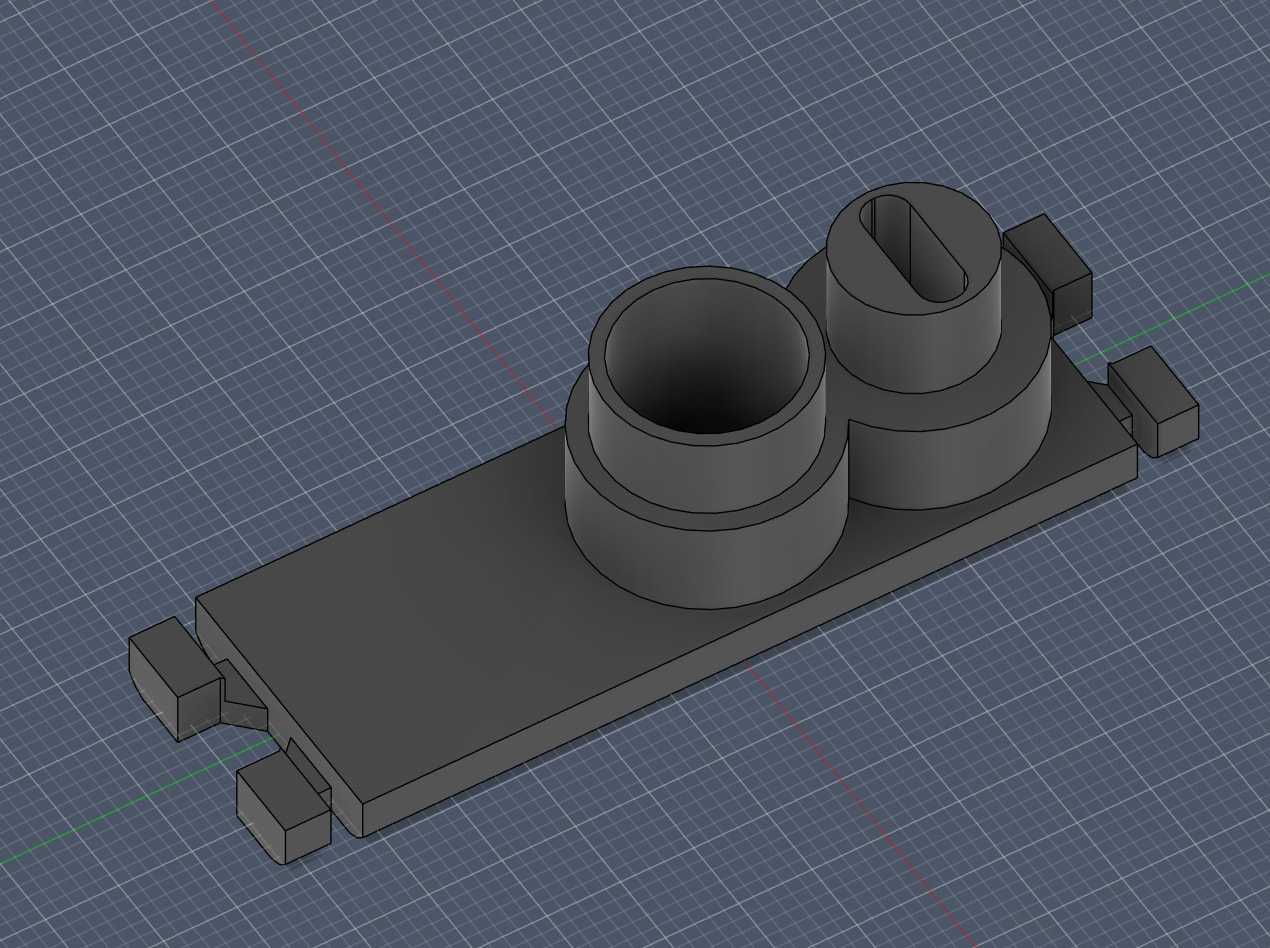
Unfortunately I don’t have one designed that would work in your saber, though. Best of luck, I’ve got to have converted at least half a dozen Xenos to Proffie now, it’s quite fun!
Yeah I’ve started and stopped a few times on a board design that would pop into that little plastic sled in LGT style chassis to upgrade the USB-C and a better lit switch too. Maybe someday I’’ll finish that. Those USB C connectors only connect to power.
My primary saber has a 3D printed prototype of what I was thinking. Means I get the convenience you’re talking about but I never finished the project. The wiring was a pain because I got over ambitious and fit a TP4056 charger in there too for 1 amp charging.
I went a slightly different route–I created a small 3d part that holds a 12mm illuminated button and a right-angle USB port, with a post so it can be raised. I can drop it into any custom chassis design for a button & usb switch almost anywhere (i used it in an ASP build with a low control box that would not support a standard chassis). I also included a 1A charging module–and wired the USB to the pads on the proffie so it can be used for charging and programming.
I’m not great at CAD, so I use Tinker–but I’m happy to share the designs if anyone is interested. The expectation is that it gets added into a custom chassis.
mtfbwy